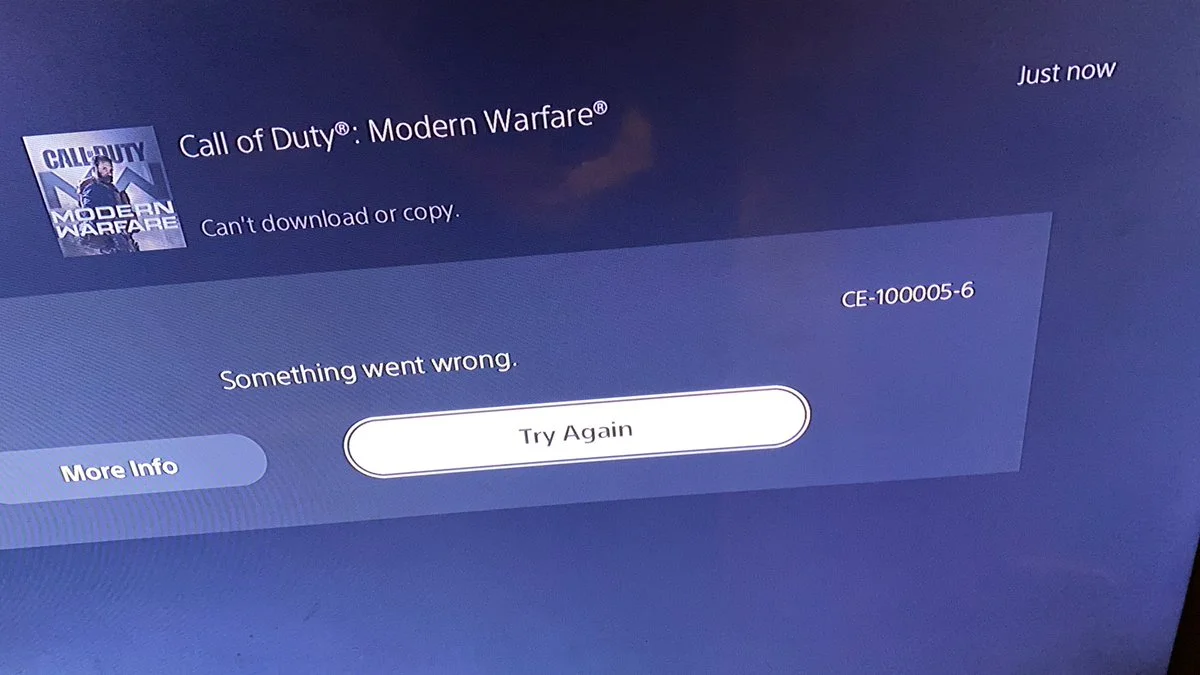
How To Fix PS5 Error Code (CE 10006-7)
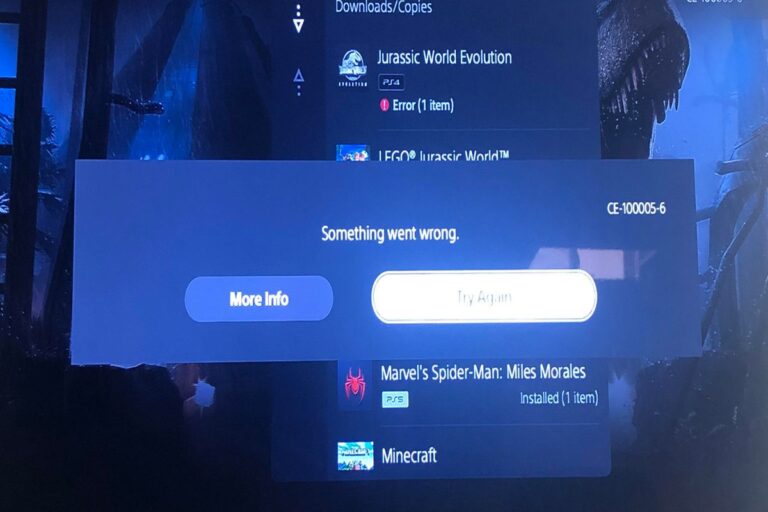
PS5 error code CE-100006-7 indicates that the console is unable to recognize an external storage drive. This issue can prevent users from accessing games, media, and other data stored on the external drive, disrupting their gaming experience. The error can stem from various factors, including outdated system software, a faulty USB connection, or an issue with the external drive itself. Users may encounter difficulties installing games, transferring data, or accessing saved files, leading to frustration and potential loss of progress.
Common Causes
The PS5 error code CE-100006-7, which signifies the console’s inability to recognize an external storage drive, can be triggered by a variety of factors.
Here are some common causes:
- Outdated system software: Running an older version of the PS5 system software can sometimes lead to compatibility issues with external storage drives.
- Faulty USB connection: A loose or damaged USB cable or port can disrupt communication between the console and the external drive.
- Issues with the external drive itself: The external drive may be malfunctioning, corrupted, or formatted in an incompatible file system.
- Power supply problems: Insufficient power supply to the external drive, especially for drives that require external power, can cause recognition issues.
- USB hub usage: Connecting the external drive through a USB hub can sometimes interfere with proper recognition.
- Simultaneous connection of multiple devices: Having too many devices connected to the PS5’s USB ports can overload the system and lead to errors.
- Software conflicts: Certain software or applications running on the PS5 might conflict with the external drive’s operation.
It’s important to investigate these potential causes to pinpoint the root of the problem and apply the appropriate solution.
Possible Solutions
1. System Software Update:
- Check for updates: Navigate to “Settings” > “System” > “System Software” > “System Software Update and Settings” > “Update System Software.”
- Update via USB: If unable to update directly, download the latest update file from the official PlayStation website and install it via a USB drive.
2. External Drive Troubleshooting:
- Check connections: Ensure the USB cable is securely plugged into both the PS5 and the external drive. Try a different USB port or cable if necessary.
- Test with another drive: Connect a different external drive to see if the issue persists. This helps isolate if the problem lies with the original drive.
- Reformat the drive: Back up any important data and reformat the external drive to the exFAT file system. This can resolve formatting or corruption issues.
- Check power supply: If using a drive with external power, ensure it’s receiving adequate power.
3. Console Troubleshooting:
- Restart the PS5: A simple restart can sometimes resolve temporary software glitches.
- Rebuild database: In “Safe Mode,” select “Rebuild Database” to reorganize and repair the console’s file system.
- Reset the PS5: As a last resort, try resetting the PS5 to its factory settings. Remember to back up your data beforehand.
4. Other Considerations:
- Avoid USB hubs: Connect the external drive directly to the PS5 console.
- Limit connected devices: Disconnect unnecessary devices to reduce potential USB conflicts.
- Contact Sony support: If the issue persists, reach out to PlayStation Support for further assistance.
Useful User Experiences
Learn from the experiences of real PS5 users who have encountered this issue and successfully resolved it.
Experience #01
I was getting this error constantly and tried everything! Reformatting, different drives, you name it. Turns out, it was just a slightly dodgy USB cable. Swapped it out for a new one and boom! Problem solved.
Experience #02
Honestly, I felt a bit silly, but a simple restart of my PS5 fixed the issue. Guess it just needed to clear its head.
Experience #03
I was on an older system software version. Updated it, and the external drive was recognized immediately. Keep your system updated, folks!
Experience #04
My external drive needs external power. I had it plugged into a weak USB hub. Plugged it directly into a wall socket, and the error vanished.
Experience #05
Turns out, my drive was formatted in NTFS. Reformatted it to exFAT, and it worked like a charm!
Experience #06
Rebuilding the database in Safe Mode was my saving grace. Seemed to clear up some corrupted files that were messing with the drive recognition.
Experience #07
I was using a USB hub. Removed it and plugged the drive directly into the PS5. Error gone!
Experience #08
I had my camera, charging cable, and a bunch of other stuff plugged in. Unplugged everything except the drive, and it worked!
Experience #09
Tried everything, but in the end, it was the drive itself that was faulty. Got a replacement, and it’s been smooth sailing ever since.
Experience #10
When all else failed, I contacted Sony Support. They walked me through some troubleshooting steps, and we eventually got it working!
![Fixing A PS5 Controller That Won’t Update [Error: CE-102175-6]](https://deepertek.com/wp-content/uploads/2023/12/PS5-Error-CE-102175-6-768x420.jpg)

![The Best High-Performance TVs For Your PS5 [2024]](https://deepertek.com/wp-content/uploads/2024/10/tv-for-ps5.jpg)